Four-Leaf MCP server
The open job-search and interview-prep MCP. Works in any MCP-aware AI assistant. Hand off to Four-Leaf for live voice mock interviews and AI resume tailoring.
Free Four-Leaf account required (the 3-day trial works). Browser-based OAuth login on first use. No API keys.
What you get
Fifteen tools. Thirteen work on a free account; the two marked paid need paid access, which the 3-day trial grants. Daily caps apply to free accounts and free trials and are lifted by a paid subscription. Every argument is optional unless marked.
list_roles
Free, no capThe catalog of roles Four-Leaf has researched interview intelligence for. Every other tool takes an id from here or any job title as its role.
Returns Role id, display name, and a one-line description for each of the 24 roles.
Try asking
- “Which roles does Four-Leaf cover?”
- “Is there a role id for product designer?”
get_role_intelligence
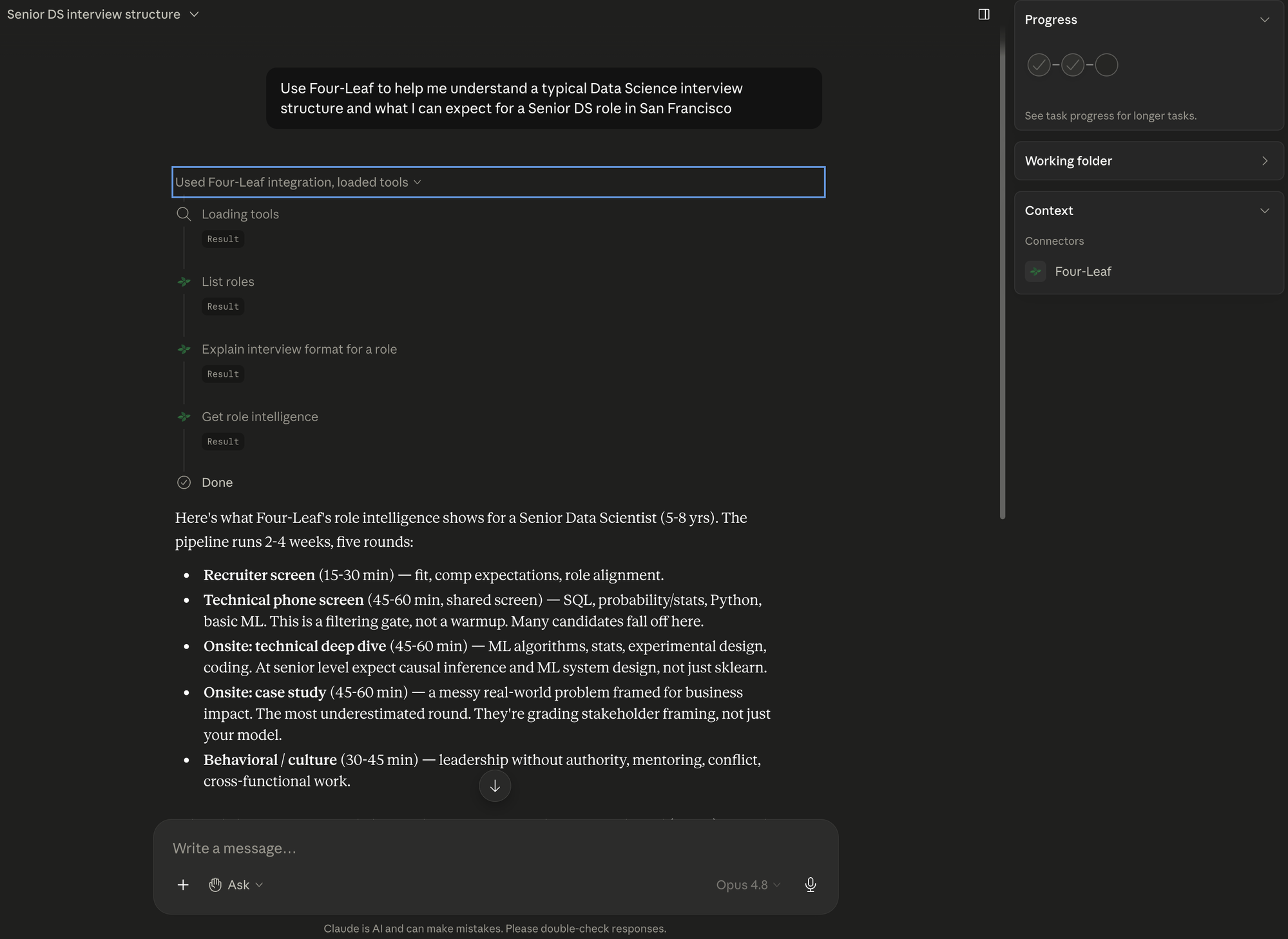
Free, no capStructured interview intelligence for one role: the typical pipeline, experience-level calibration, question categories, the five-dimension scoring rubric, and resume and cover-letter guidance.
role(required): Role id from list_roles, or a job title that maps to one.
Returns Pipeline rounds with duration, format and focus; expectations by seniority; rubric dimensions; resume and cover-letter guidance.
Try asking
- “What does the interview loop look like for a data scientist?”
- “What do evaluators score a product manager on?”
get_interview_questions
Free, no capQuestions from the Four-Leaf question bank for a role, optionally filtered by difficulty or type. No sample answers.
role(required): Role id, or any job title.difficulty: easy, medium, or hard.questionType: behavioral, technical, situational, coding, or case.limit: 1 to 25. Defaults to 10.
Returns Question text, context, a coaching tip, and the key points a strong answer covers, mixed across types unless one is pinned.
Try asking
- “Give me five hard behavioral questions for a senior engineer.”
- “Pull some case questions for a management consultant role.”
explain_interview_format
Free, no capWhat to expect in interviews for a role and seniority, how to win, and red flags. The pipeline is Four-Leaf data; the prose is written from it. A company adds public-knowledge flavor and the response says so.
role(required): Role id, or any job title.experienceLevel: entry, mid, senior, or staff. Defaults to the level on your Four-Leaf profile or resume.company: Optional target company.
Returns The pipeline summary plus whatToExpect, howToWin and redFlags, and companyDataAvailable: false when a company was named.
Try asking
- “Walk me through a staff engineer loop at a big tech company.”
- “What loses a mid-level PM interview?”
search_jobs
Free, daily cap: 30 a day, shared with search on four-leaf.aiNatural-language search over 140,000+ active postings scraped nightly from Workday, Greenhouse, Ashby, SmartRecruiters, Lever, and Eightfold. One role and one seniority per call; a named company is a filter.
query(required): Plain English, e.g. 'senior data scientist remote' or 'product manager at Stripe'.location: City, state, or country, when it is not in the query.remote: true for remote roles only.limit: 1 to 10. Defaults to 5.
Returns Up to 10 results with id, title, company, location, posted date, salary if published, a short snippet, and the apply URL, plus which filters applied and which parts of the query were not filters.
Try asking
- “Find remote senior backend roles posted this week.”
- “Any machine learning jobs at Anthropic?”
get_job
Free, no capThe full posting for one search result, by id.
jobId(required): The id of a search_jobs result.
Returns Everything the search row had plus the description (first 12,000 characters) and whether the posting is still active.
Try asking
- “Tell me more about the second one.”
- “Show me the full description for that Stripe role.”
generate_practice_questions
Free, daily cap: 20 a dayFresh practice questions on demand for a role, question type and difficulty, optionally flavored for a company.
role(required): Role id, or any job title.type: behavioral, technical, situational, coding, or case. Defaults to behavioral.difficulty: easy, medium, or hard. Defaults to medium.company: Optional company for interview-style flavor.count: 1 to 10. Defaults to 5.
Returns The questions, each with a coaching tip and the key points a strong answer covers. No sample answers.
Try asking
- “Give me three hard system design questions for a staff engineer.”
- “Five behavioral questions in the McKinsey style, please.”
score_answer
Free, daily cap: 20 a dayRubric-scored feedback on an answer typed in the conversation. The same scoring the Four-Leaf practice page applies to typed answers.
question(required): The question as asked.answer(required): The answer, at least a few sentences.role: Optional role id or job title, to calibrate the rubric.experienceLevel: entry, mid, senior, or staff. Defaults to the level on your Four-Leaf profile or resume.questionType: behavioral, technical, situational, or coding. Defaults to behavioral.company: Optional, for framing only.
Returns A 1-10 score, scores on relevance, specificity, structure, role fit and communication, strengths, improvements, and detailed feedback.
Try asking
- “Here's my answer to that conflict question, score it.”
- “Grade this as a senior data scientist answer.”
match_score
Free, daily cap: 20 a dayHow well a resume matches a job description. Defaults to the master resume saved on the account. Takes posting text, not a URL.
jobDescription(required): The posting text, 50 to 50,000 characters.resume: Plain text to score instead of the saved master resume.
Returns A 0-100 overall score, skills, experience and role-alignment breakdowns, matched and missing skills, and a link to tailor the resume against the same posting.
Try asking
- “Score my resume against this job description.”
- “How well do I match the role you just found?”
comp_coach
Free, daily cap: 20 a dayNegotiation analysis for an offer in hand. Takes the offer's components, current comp, and up to 10 competing offers. The market percentile is a model estimate from public benchmarks, and the response says so.
role(required): Job title.baseSalary(required): Annual base in USD.level, company, location: Optional context.equity, signingBonus, targetBonus, benefits: Optional components of the offer.currentComp, competingOffers: Optional, same shape as the offer.priorities, constraints, targetOutcome: Optional free text about what the candidate wants.
Returns Year-one and year-four total comp, a market comparison with its caveat, component-by-component analysis with talking points, red flags, an opening move with expected responses, and questions to ask before signing.
Try asking
- “I have an offer: $185k base, $200k RSUs over four years, 15% bonus. Is it good and how do I counter?”
- “Compare these two offers for me.”
comp_benchmarks
Free, daily cap: 20 a dayA market salary band grounded in a server-side web search, for when there is no offer yet. Runs up to three searches and usually takes 20 to 45 seconds.
role(required): Job title.level: Omit for bands broken out by level.location: Market, e.g. 'Remote US' or 'London'.companyType: non-profit, startup, big tech, government, enterprise.company: A specific company to anchor on.
Returns Base-salary bands, total-comp context, the sources found with URLs, a confidence rating, and caveats. Sources can be empty at low confidence.
Try asking
- “What does a senior product manager make in Seattle?”
- “Salary range for a data engineer at a non-profit?”
list_applications
Free, no capThe application tracker on the account: what has been saved, applied to, and is interviewing.
status: saved, applied, interviewing, rejected, or withdrawn. Omit for all.limit: 1 to 50. Defaults to 20.
Returns Company, title, status, posting URL, match score and salary range when set, dates, and a link to each application. No job descriptions.
Try asking
- “What am I interviewing for right now?”
- “List everything I've applied to this month.”
save_application
Free, no capSaves a job to the tracker, by search result id or by company and title. A job already in the tracker is returned as-is and nothing is written.
jobId: The id of a search_jobs result.company, title: Required when jobId is not set.jobUrl, jobDescription: Optional, for a posting found elsewhere.status: saved or applied. Defaults to saved.
Returns The application id, status, whether it already existed, and a link to it.
Try asking
- “Save that Stripe role to my tracker.”
- “Add the job I just pasted as applied.”
start_voice_mock_interview
Paid accessA link to the voice practice setup page with the role, level and round pre-selected. The practice runs on four-leaf.ai: spoken answers, adaptive follow-ups, rubric-scored feedback. No session is created by the tool.
role(required): Role id, or any job title.interviewType: recruiter, technical, behavioral, case, coding, or system_design. Defaults to behavioral.experienceLevel: entry, mid, senior, or staff. Defaults to the level on your Four-Leaf profile or resume.company: Optional. Echoed back for context; the link does not carry it.
Returns The setup link, whether the requested round was pre-selected, and the rounds this role offers. Without paid access, an upgrade message and a pricing link.
Try asking
- “Set me up a voice mock for a senior data scientist behavioral round.”
- “I want to practice a system design interview out loud.”
tailor_resume
Paid accessA link to the Tailor Resume page for the master resume against a job description. A supplied description is stashed for 15 minutes and the page opens with it filled in.
role(required): Role id, or any job title.jobDescription: Optional posting text, 50 to 20,000 characters.company: Optional company name.
Returns The tailor link and whether a description was attached. Without paid access, an upgrade message and a pricing link.
Try asking
- “Tailor my resume to this posting.”
- “Open the resume tailoring for the role you just scored.”
Two install paths
Most users want one or both of these. Pick whichever fits your editor.
1. Hosted MCP (works in any MCP-aware client)
Connect the hosted endpoint directly. Works in Claude Desktop, Claude Code, Cowork, Cursor, ChatGPT Desktop, Perplexity, Cline, Continue, and Windsurf. Browser-based OAuth on first call. No API keys.
One-line install for Claude Code:
claude mcp add four-leaf --transport http https://four-leaf.ai/api/mcpPer-client snippets for everything else are below.
2. Open-source Skill (works in 17+ editors)
The MIT-licensed Skill wrapper adds a coaching layer on top of the MCP tools. Routes seven workflows (kickoff, find-jobs, prep-role, practice, analyze-jd, negotiate-prep, interview-strategy) based on what you ask for. Source at github.com/fourleafai/clover-public.
One command for any skills-aware editor (Claude Code, Cursor, Codex, Cline, Amp, OpenCode, Zed, Gemini CLI, and 9 more):
npx skills add fourleafai/clover-publicOr, for tool-specific bundles (Claude Code, Cursor, OpenAI Codex CLI, GitHub Copilot):
npx four-leaf-coach addThe Skill is useful but not required. The MCP tools work on their own.
Per-client install (hosted MCP)
The hosted MCP lives at https://four-leaf.ai/api/mcp. Drop the snippet for your client into its config, restart, and complete the OAuth login the first time your assistant invokes a tool.
Claude Desktop
Config path: ~/Library/Application Support/Claude/claude_desktop_config.json (macOS) or %APPDATA%/Claude/claude_desktop_config.json (Windows)
{
  "mcpServers": {
    "four-leaf": {
      "url": "https://four-leaf.ai/api/mcp"
    }
  }
}
Restart Claude Desktop after editing. On first tool call, your browser will open for Four-Leaf login.
Claude Code (terminal)
Config path: Run from any project directory
claude mcp add four-leaf --transport http https://four-leaf.ai/api/mcpOne command. OAuth opens in your default browser the first time the MCP is invoked.
Claude Cowork
Config path: Customize → Connectors → + (add custom connector)
Name: Four-Leaf
URL: https://four-leaf.ai/api/mcp
Cowork handles the OAuth flow in-app. Once connected the 15 tools show up under Tool permissions.
Cursor
Config path: ~/.cursor/mcp.json
{
  "mcpServers": {
    "four-leaf": {
      "url": "https://four-leaf.ai/api/mcp"
    }
  }
}
Reload Cursor after editing. OAuth flow opens in browser.
ChatGPT Desktop
Config path: Settings → Apps & Connectors → Advanced → Developer Mode → Add
Name: four-leaf
URL: https://four-leaf.ai/api/mcp
Requires ChatGPT Plus/Pro/Business/Enterprise/Education with Developer Mode enabled. Free ChatGPT users cannot install MCPs at this time.
Perplexity
Config path: Settings → Connectors → + Custom
Name: Four-Leaf
URL: https://four-leaf.ai/api/mcp
Requires Perplexity Pro, Max, or Enterprise. OAuth opens in browser on first call.
Cline (VS Code)
Config path: Cline settings → MCP servers → Add Server
Server URL: https://four-leaf.ai/api/mcpCline handles the OAuth dance in the VS Code window.
Continue (VS Code / JetBrains)
Config path: ~/.continue/config.json
{
  "experimental": {
    "modelContextProtocolServers": [
      {
        "transport": { "type": "streamable-http", "url": "https://four-leaf.ai/api/mcp" }
      }
    ]
  }
}
Windsurf
Config path: Settings → MCP servers → Add
URL: https://four-leaf.ai/api/mcp
Type: streamable-http
Manage connected apps
See all the AI assistants you've connected, and revoke any of them, at Settings → Connected apps.
Self-host (advanced)
The reference implementation lives at github.com/fourleafai/clover-public. MIT-licensed. Useful if you want to read the code, fork it, or run a local stdio version without auth. Most users want the hosted version above.
FAQ
Skill or MCP? What's the difference?
The MCP server is the tools (search_jobs, match_score, comp_benchmarks, etc.). It runs on our servers and any MCP-aware client can call into it. The Skill is a thin routing layer that runs in your editor and tells the agent when to call which tool. You can install just the MCP and your AI will figure out the rest. Most users do.
Does this work with free ChatGPT?
No. OpenAI gates MCP-aware tools behind Developer Mode on paid ChatGPT plans. Free ChatGPT users can't install MCPs (yet).
Do I need a paid Four-Leaf account?
Thirteen tools work on a free Four-Leaf account. Two need paid access, which the 3-day trial also grants: the voice mock interview link and AI resume tailoring. The compute tools have daily caps on free accounts and free trials; a paid subscription lifts them.
What data does Four-Leaf see when I use the MCP?
Only the arguments your AI assistant passes to our tools, plus your account identity. We do not see the rest of your chat. What gets stored: a daily usage count per tool, an analytics event recording which tool ran and how long it took, an application row when you use save_application, and a single-use job description that expires after 15 minutes when match_score or tailor_resume needs to hand it to the website. Answers you score and questions you generate are not saved. Standard Four-Leaf privacy policy applies.
How do I revoke access?
Settings → Connected apps. Revoking takes effect immediately on the next tool call.